14/10/2026
Prerequisites
Before completing this session, please carefully read about the necessary prerequisites.
| Prerequisite | Description | Where to find it |
|---|---|---|
| R and RStudio installed | Latest versions of both R and RStudio | Download RStudio |
| Basic R skills | Introduction to R - Part I | Access here |
| Advanced R skills | Introduction to R - Part II | Access here |
| Basic Git skills | Introduction to version control with Git in RStudio | Access here |
| GitHub account | Your own GitHub account | Join GitHub |
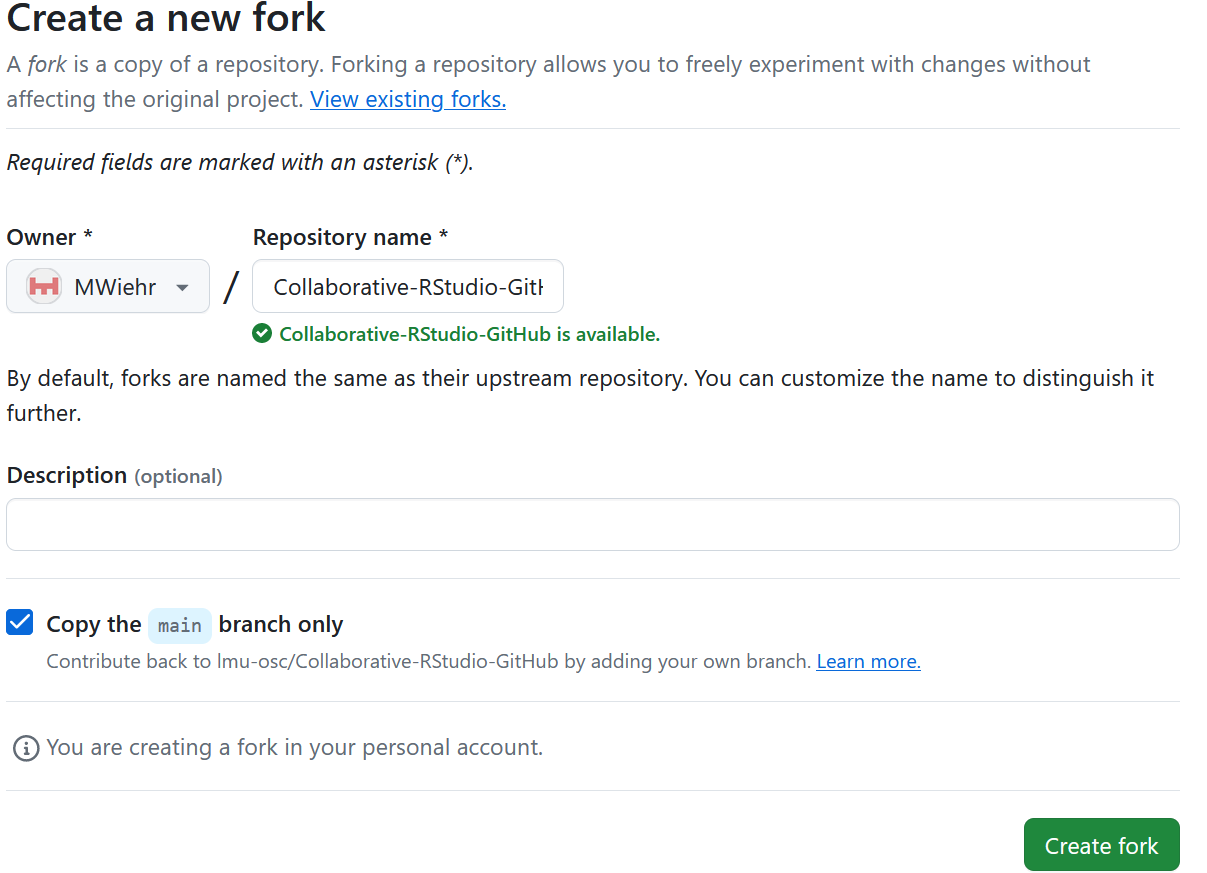
| Practice GitHub repo | Fork the LMU OSC Collaborative-RStudio-GitHub repository to set up a practice repository for the exercises in this lesson |
Before we collaborate, we need to set up a practise repository.
Fork”Create fork”Now you have your practice repository!
You have copied all the materials from the LMU OSC Collaborative-RStudio-GitHub repository needed to do this session’s activities with your own GitHub account. This fork will be referred to as the main repository from here on and is the repository your learners will work on.
Any remaining questions about the most recent content and/or practical exercises?
What is your level of familiarity with working on GitHub?
I have never heard of it before.
I have heard of it but have never worked with it.
I have basic understanding and experience with it.
I am very familiar and have worked with it extensively.
Which of the following concepts or skills do you feel most confident about in relation to Git and GitHub? (Select all that apply)
Creating and initializing a new Git repository.
Making commits and writing meaningful commit messages.
Cloning a repository from GitHub to my local machine.
Pushing local changes to a remote repository.
Pulling or fetching updates from a remote repository.
Forking a repository and working on my own copy.
I am not sure about any of these concepts.
On a scale of 1 to 5, how comfortable are you with using Git and GitHub for collaborative coding and version control? (1 = Not comfortable at all, 5 = Very comfortable)
1
2
3
4
5
Which statement best describes your experience with pushing and pulling in the context of working collaboratively on GitHub?
I have never heard about either of these concepts.
I have heard about these concepts before, but do not remember the exact details.
I have a conceptual understanding of these concepts, but have not actively integrated them into my workflow.
I have a conceptual understanding of both concepts and actively integrate them into my workflow.
What do we see in the results?
Previously:
Up next:
GitHub and Open Science
GitHub offers a platform that enables transparent sharing, version control, and reproducible workflows. These are some of the core pillars of Open Science.
At the end of this session, you should be able to:
Researchers can face many challenges when working collaboratively in a team with other researchers or in multi-organisational projects. Some of these are:
Sound familiar?
Think about your past experience working collaboratively in a team. Did you face these challenges? Did similar or other challenges arise?
GitHub can help facilitate better collaboration between researchers. Here is how:


With collaborative coding:
Note
Collaborative coding is only one way a team or a research group can work together on a single project. GitHub supports collaborative coding, but more generally collaboration on many different types of materials/projects, not just code.
What a workflow using GitHub can look like:
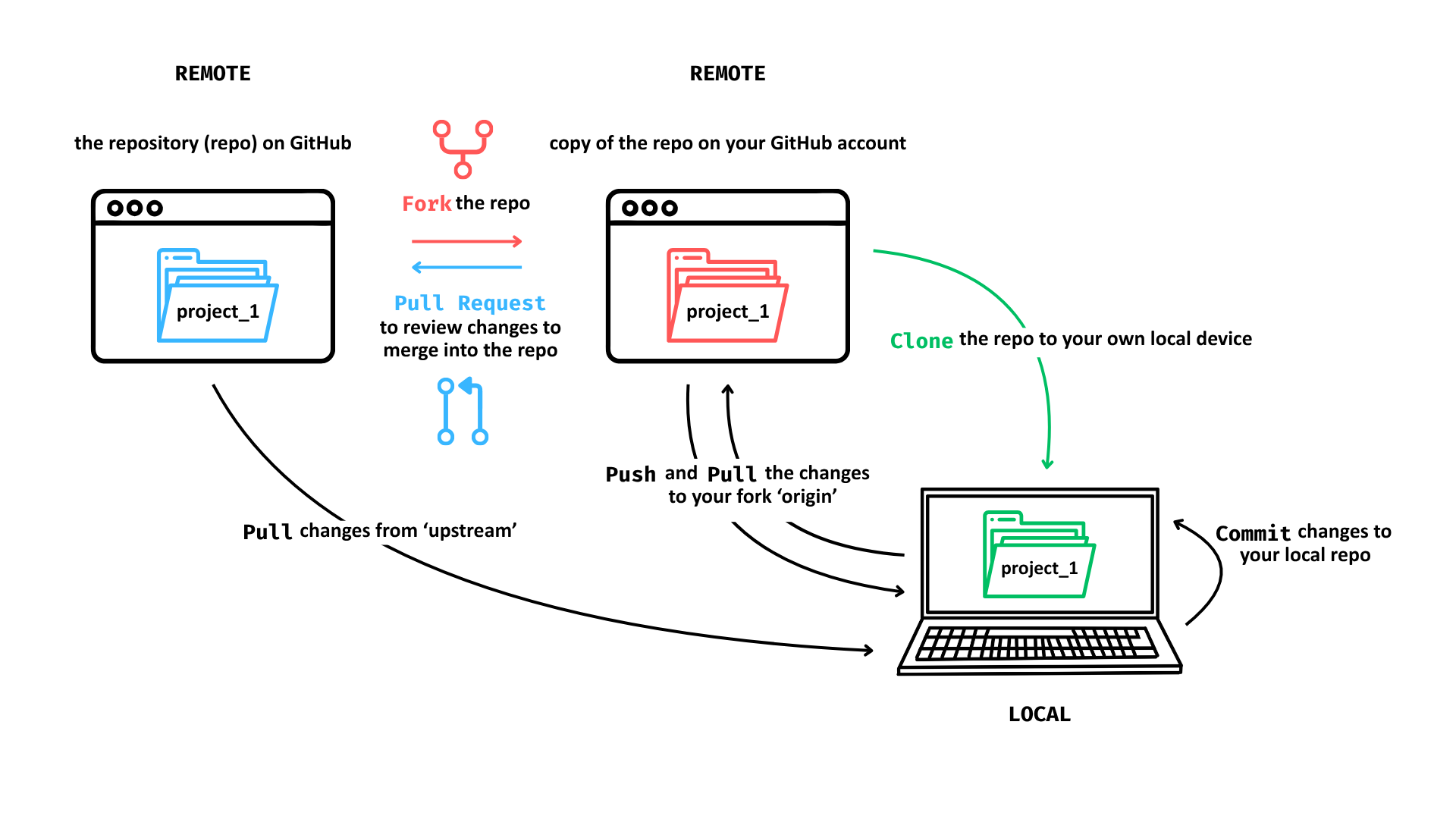
© 2025 Elizabeth Waterfield
To fork a repo means to copy a collaborator’s repo to your own remote GitHub account.
Here’s a link to the main repository:
What is meant by “repo” here?
By repo on GitHub we mean one of two things:
1) the repository your instructor created on their own remote GitHub account for you to work on, or
2) an existing repo for practice e.g., https://github.com/lmu-osc/Collaborative-RStudio-GitHub/tree/main. Go to the repo that is available to you now.
Something does not look the same?
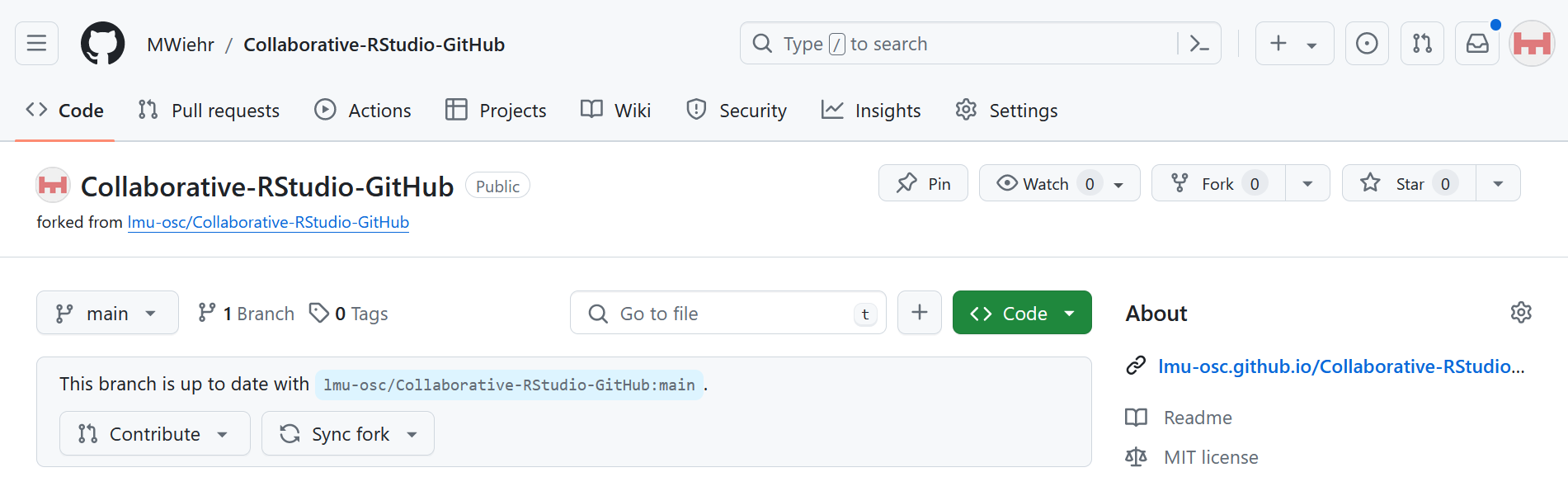
Note that the screenshot may not match exactly because it depends which repo you forked from: You may be forking from your instructor’s GitHub instead of from the practice repo from ‘lmu-osc’.
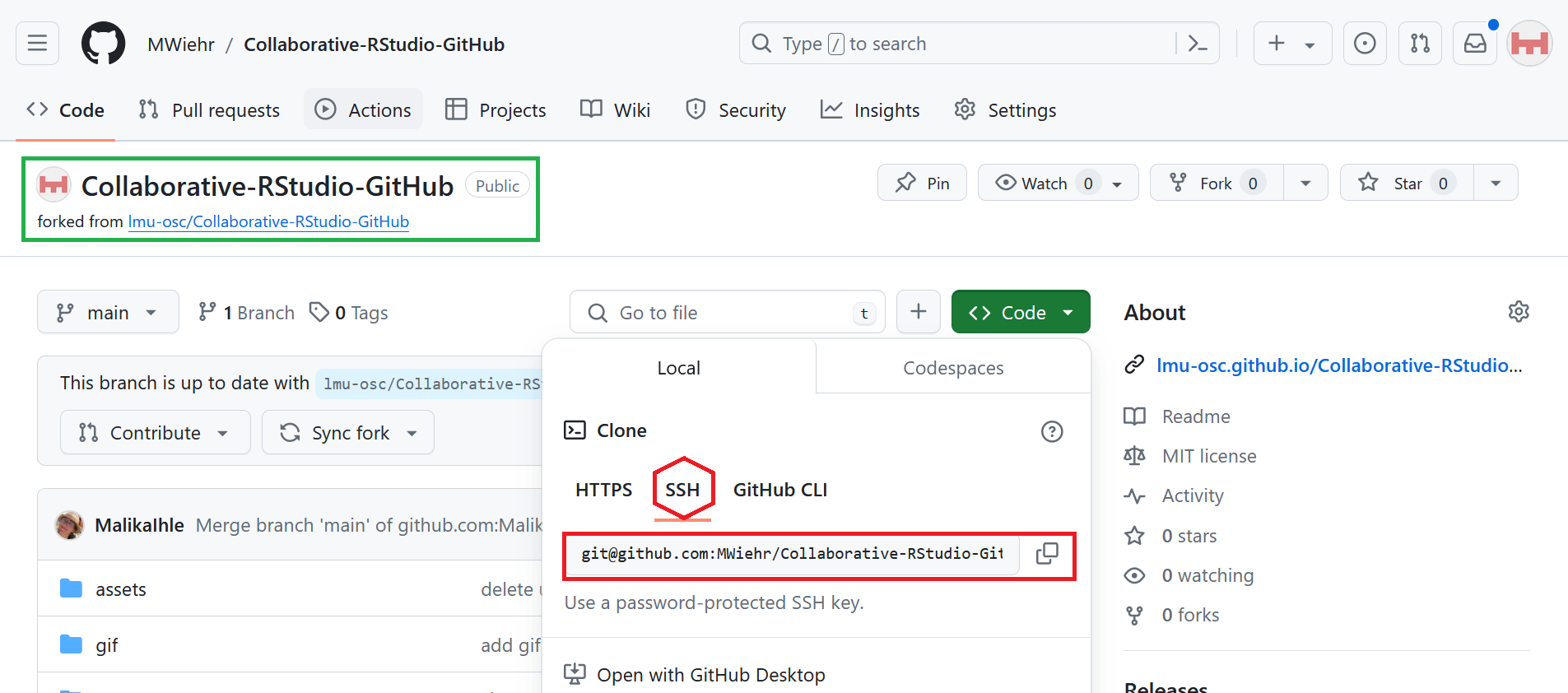
You will see the fork of the repository on your GitHub account:
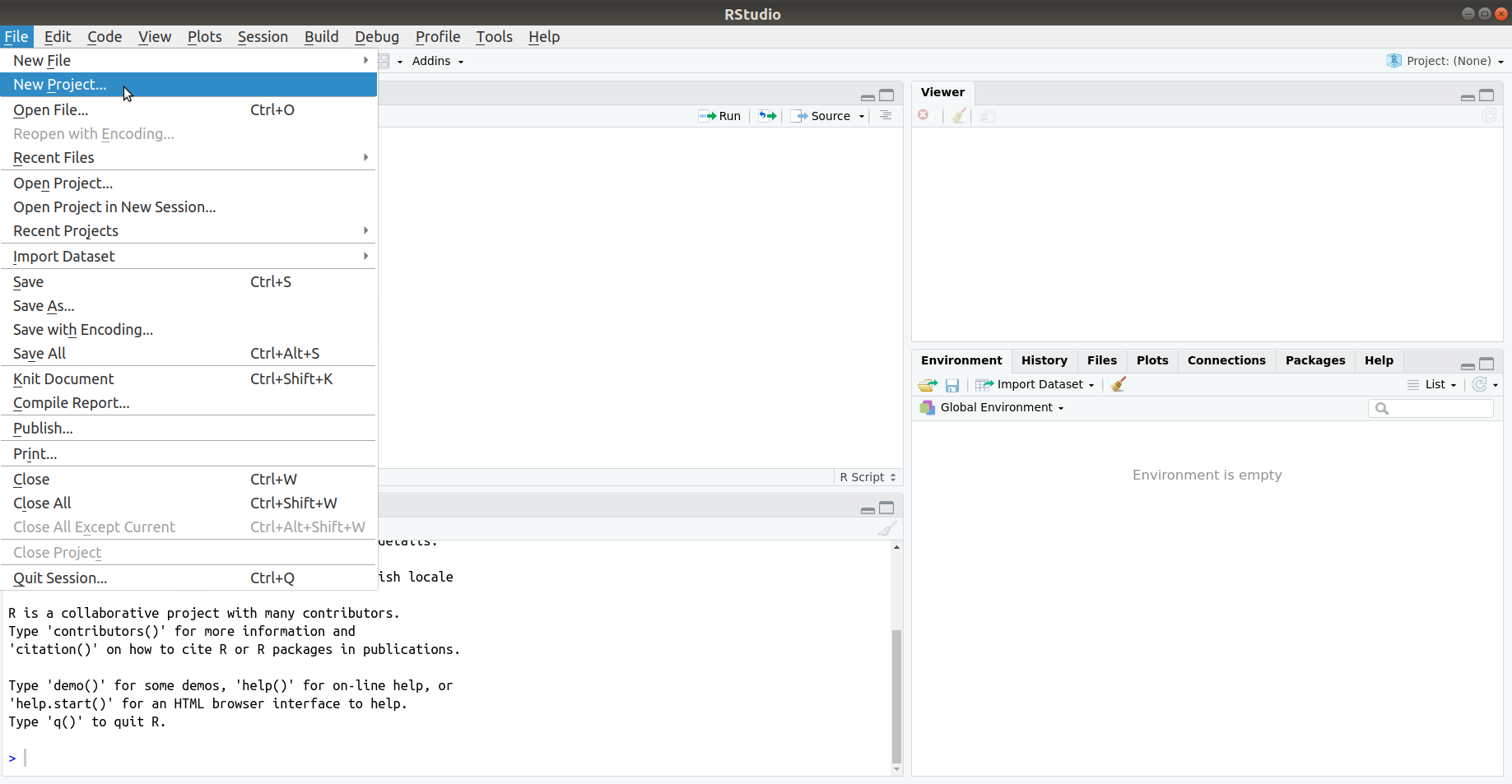
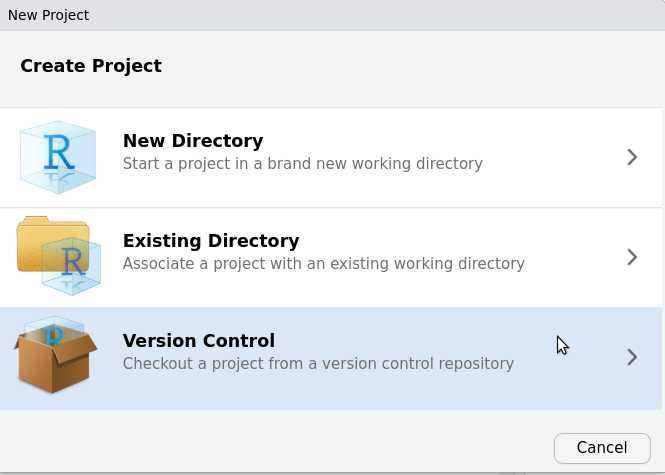
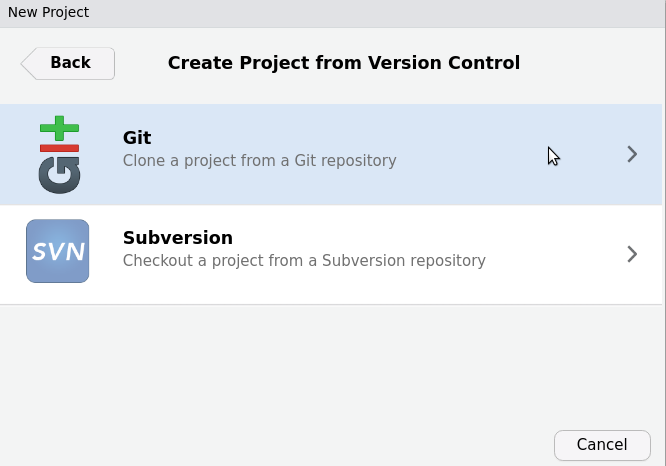
To clone a repo means to copy the project files onto your local device, such as your personal computer.
Important difference: Forking vs. cloning
When you fork the repo, a copy is made on your remote GitHub account. When you clone a repo, a copy is downloaded from GitHub onto your local device.


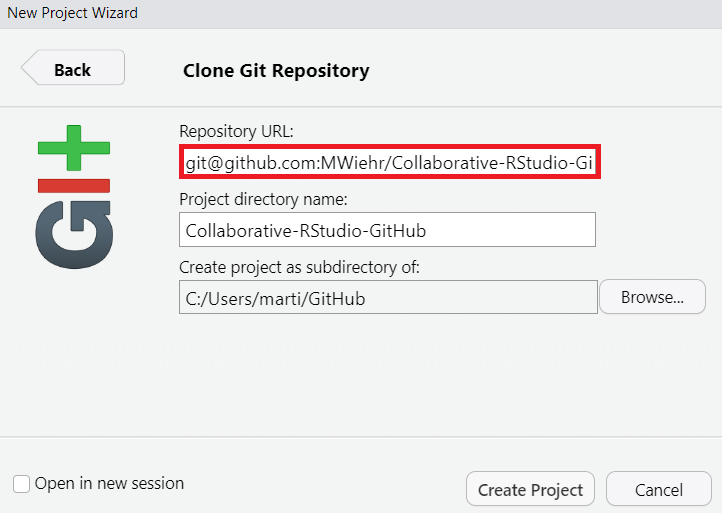
Placing this project in a new folder
First, make a new folder on your device. Then, you can change the path under “Create project as subdirectroy of:” to place this Git repository in that new folder. We are making a new folder because it is advisable that each folder has its own Git database.
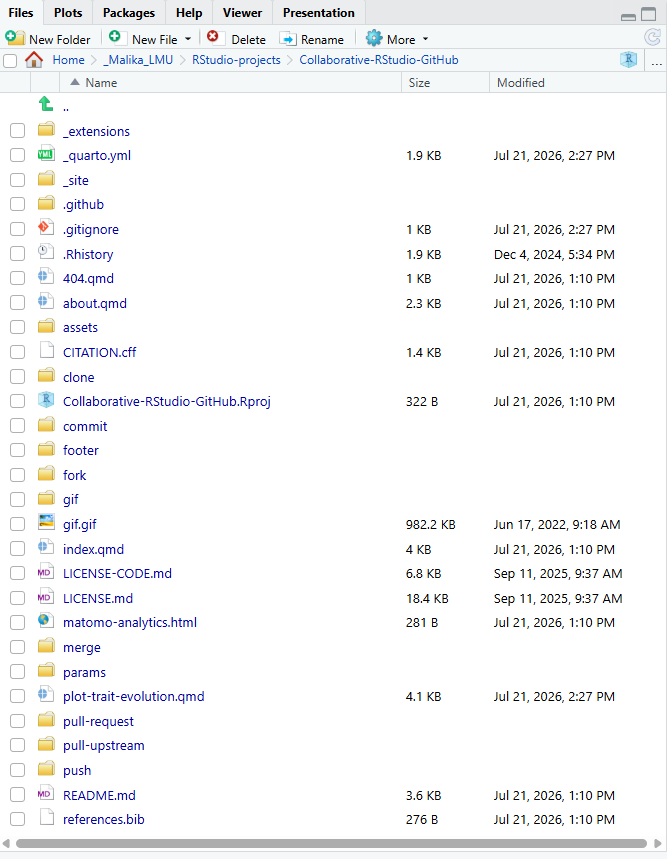
Now, when you click on the “Files” tab in RStudio, you should see all the files from the main repository.
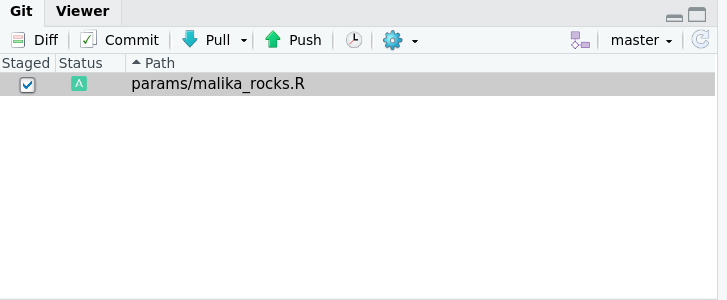
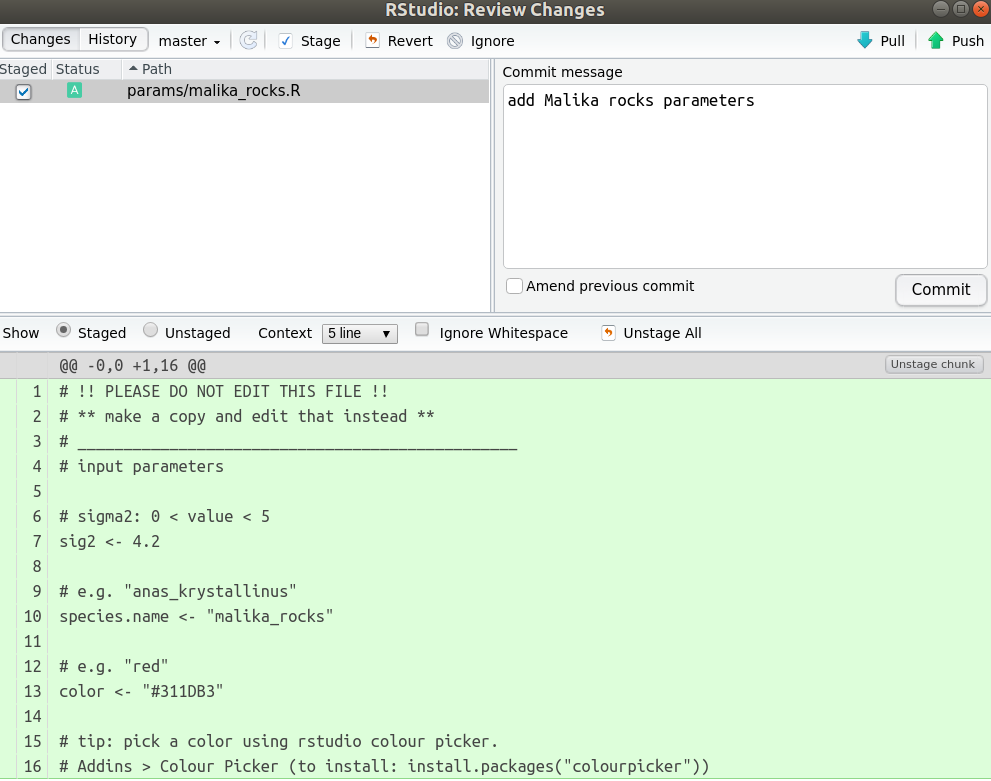
To commit to a project means to save the file with the changes you made locally in your version control system.
Avoiding merge conflicts
Merge conflicts happen when Git cannot automatically combine changes because the same part of a file was edited differently by two collaborators. Frequent commits help with resolving conflicts because they create clear checkpoints in your project’s history. GitHub also offers GitHub issues as a communication tool to resolve conflicts.
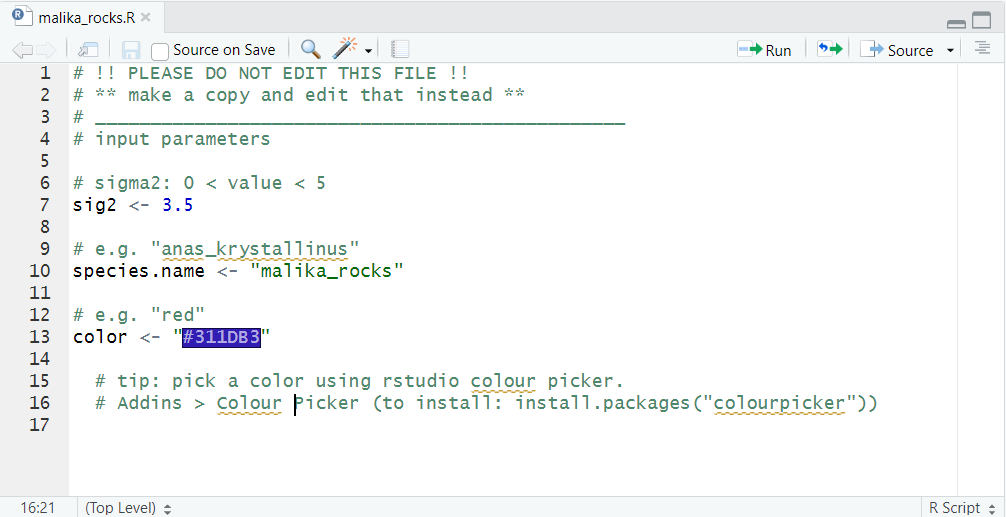
Before you commit to a project, you need to make some changes to the project.
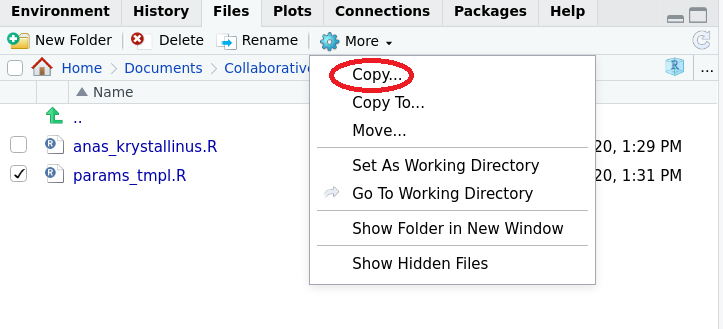
Great, now you have made changes! You added a file with your parameters on a shared project and committed it. Let’s take a minute (literally) and recap what you did to achieve that.
Activity: one-minute paper!
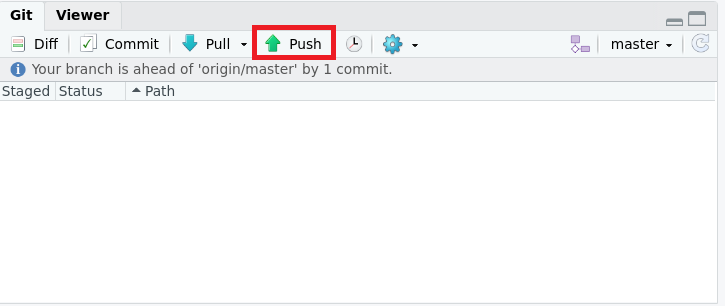
To push changes means to upload your local commits from your local computer to the remote repository on GitHub.
If you successfully pushed your changes, you would see a pop up box like the one below:
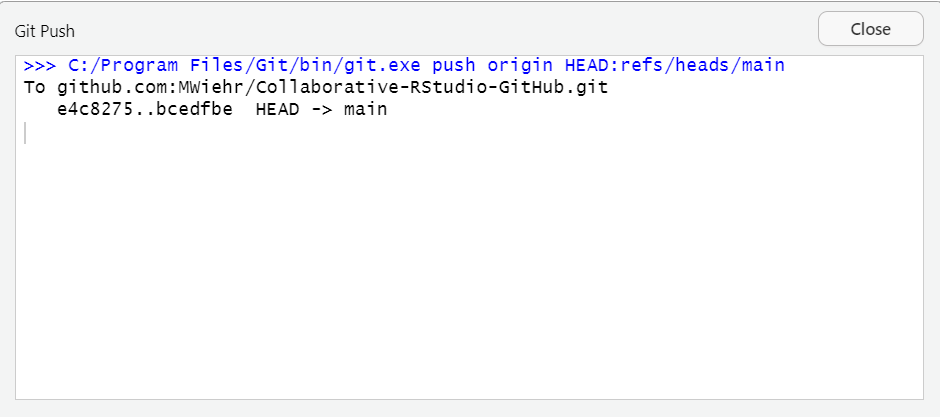
Important step: refresh the page
Refresh the page of your forked repository on GitHub and you should see your new file with the commit message next to it. Refreshing the page is an important step to update your forked repository with the new file you added.
What is GitHub mainly used for by a team working on the same project?
Editing photos online
Hosting and collaborating on code or research projects
Sending emails and important messages to team members
Backing up personal files only
On GitHub, why would you fork a repository?
To delete the original repository and start a new one
To download a copy of the remote repository to your local computer
To create your own remote copy of someone else’s repository on GitHub
To merge your work into the main branch and have everyone’s work in one folder
What does it mean to clone a repository?
You download the repository from GitHub to your local device
You create a backup of your GitHub account
You make your repository private
You copy code into a new file then upload it to GitHub
When you make changes to a file then commit it, what happens?
It deletes all previous versions of your file
It sends your work directly to the main repository
It saves your changes locally (on your device)
It approves changes made by other collaborators
After I made changes and committed it, why would I then push the changes?
To create a new repository
To incorporate my changes into the files of the main repository
To notify my teammates that I made changes
To upload the work I saved locally to GitHub
What do we see in the results?
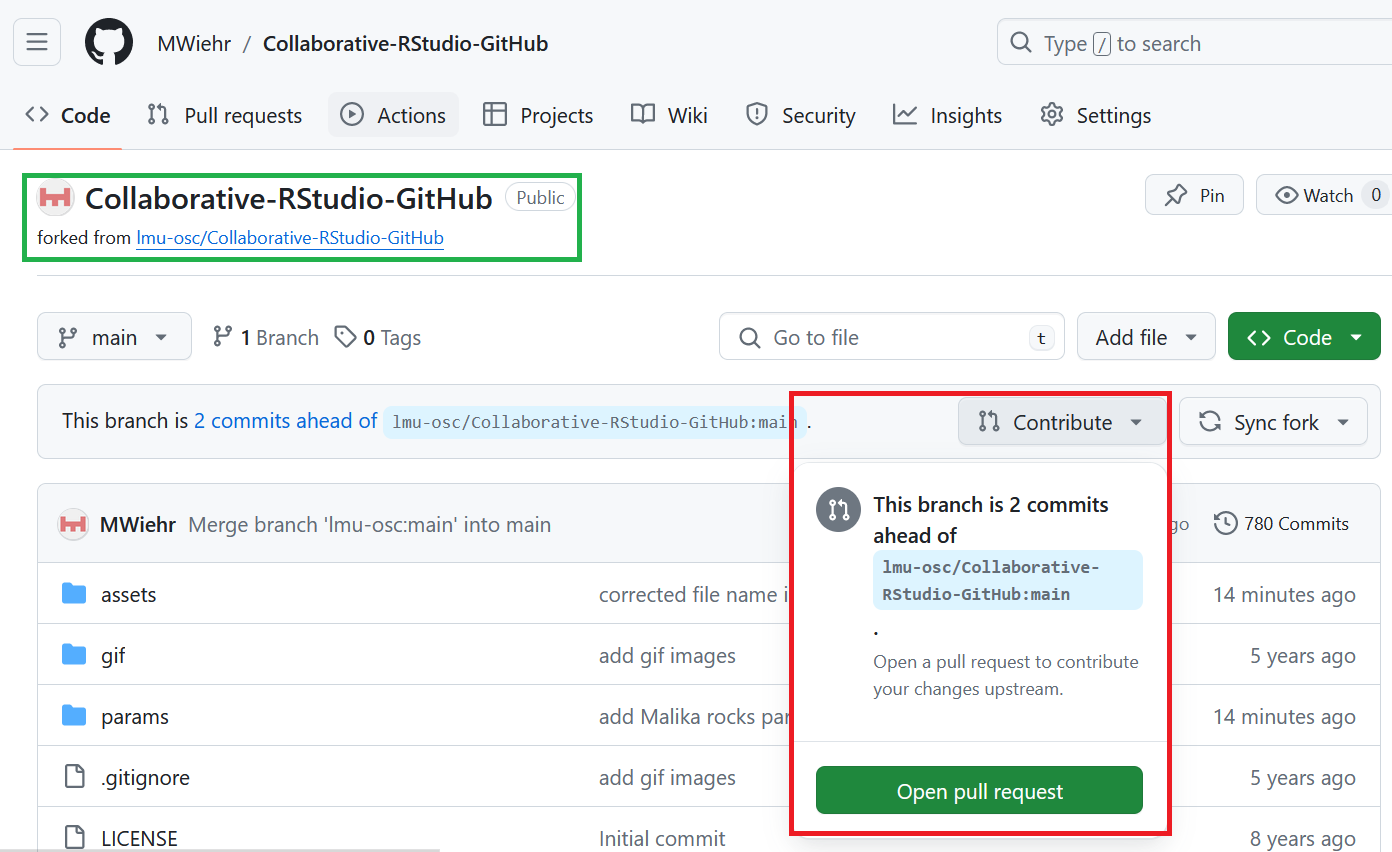
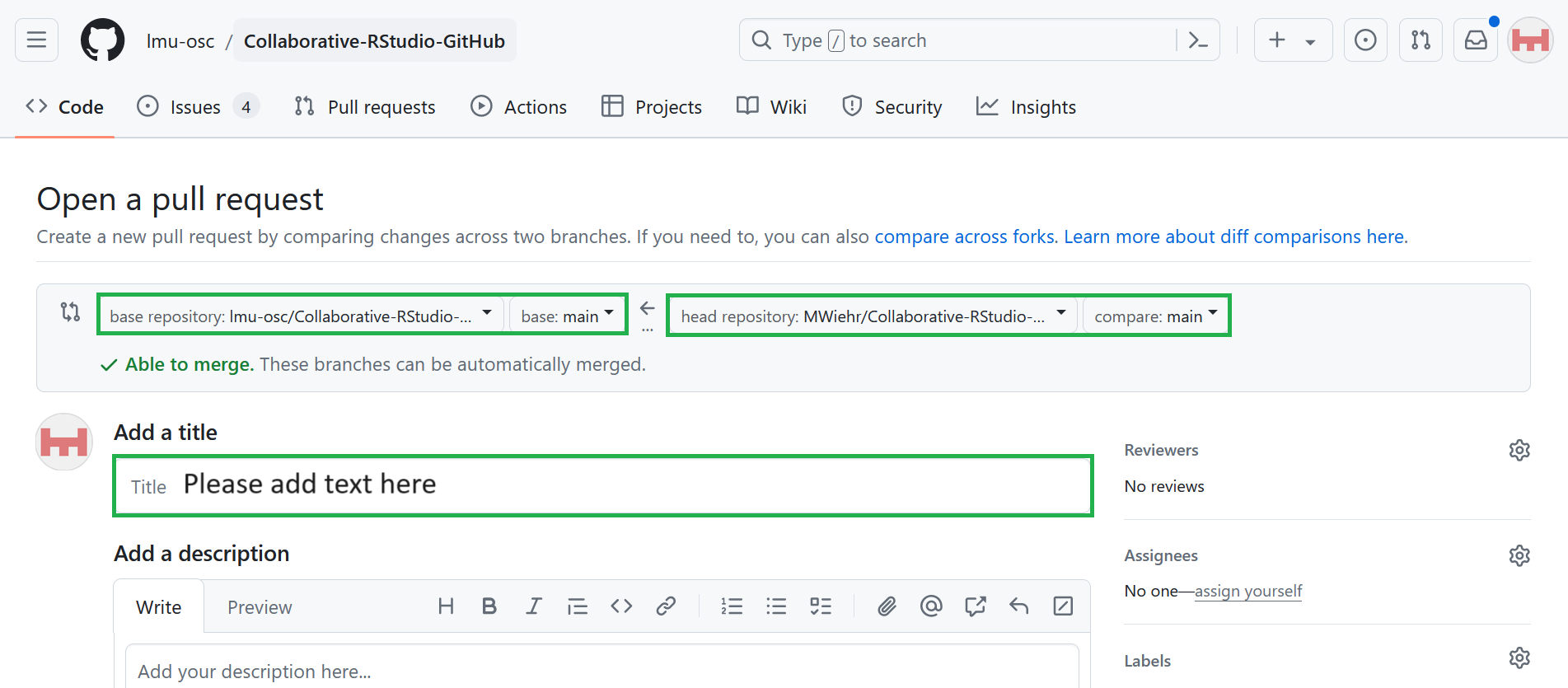
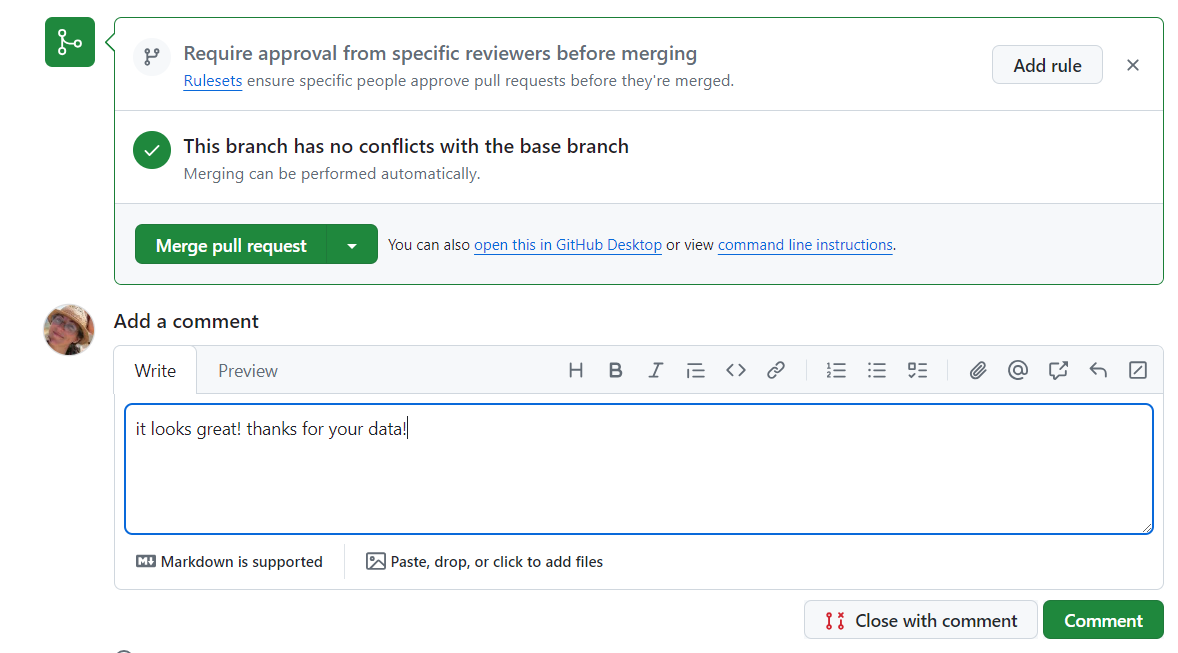
To make a pull request means asking the repository’s owner to review the changes you made (from your fork or branch) and merge them into the main repository on GitHub.
To merge changes means to combine updates from different branches or contributors into one unified version of the project.

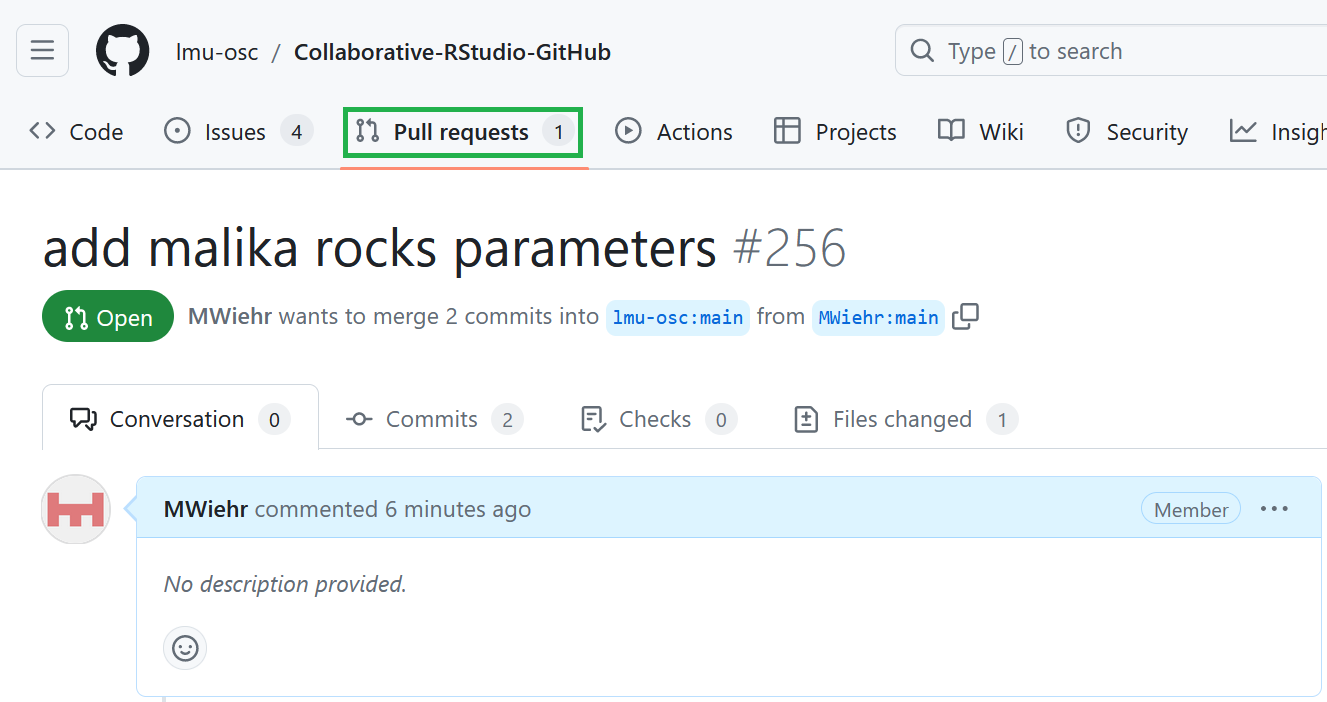
The owner of the main repository:
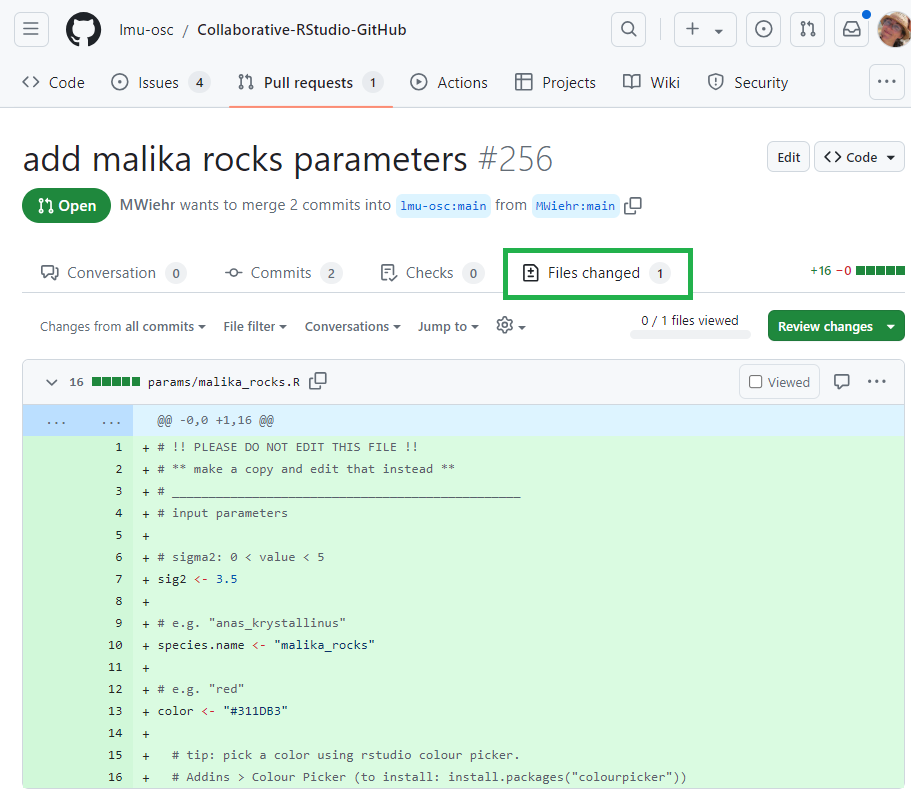
Pull requests” tab to inspect the changed filesWhat’s happening here?
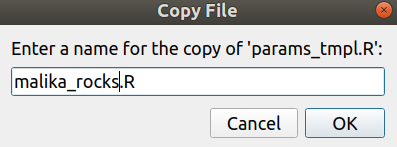
In this example, the file “malika_rocks.R” is being reviewed to then be added to the “params” sub-folder in the main repository project files.

If everything looks fine, the owner will:
Pull request” tabNow let’s see all the contributions work together!
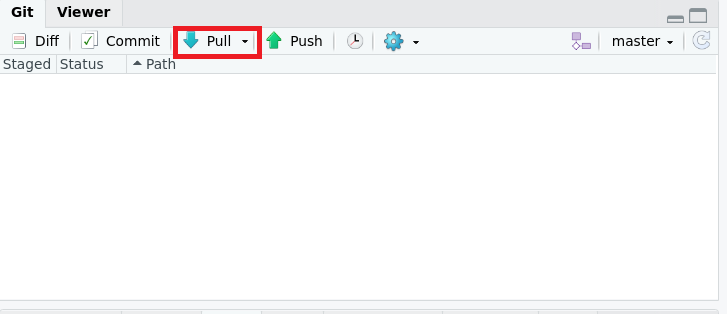
Pull” button in RStudio.What should I see?
All the contributions that were merged into this repository should show up in the ‘Params’ sub-folder in the local repository.
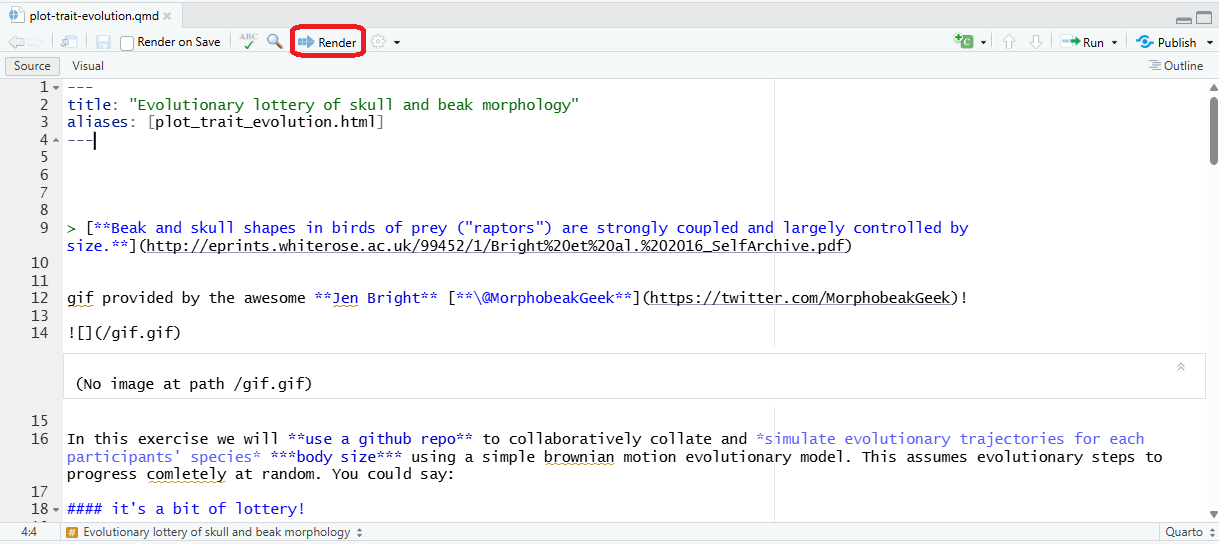
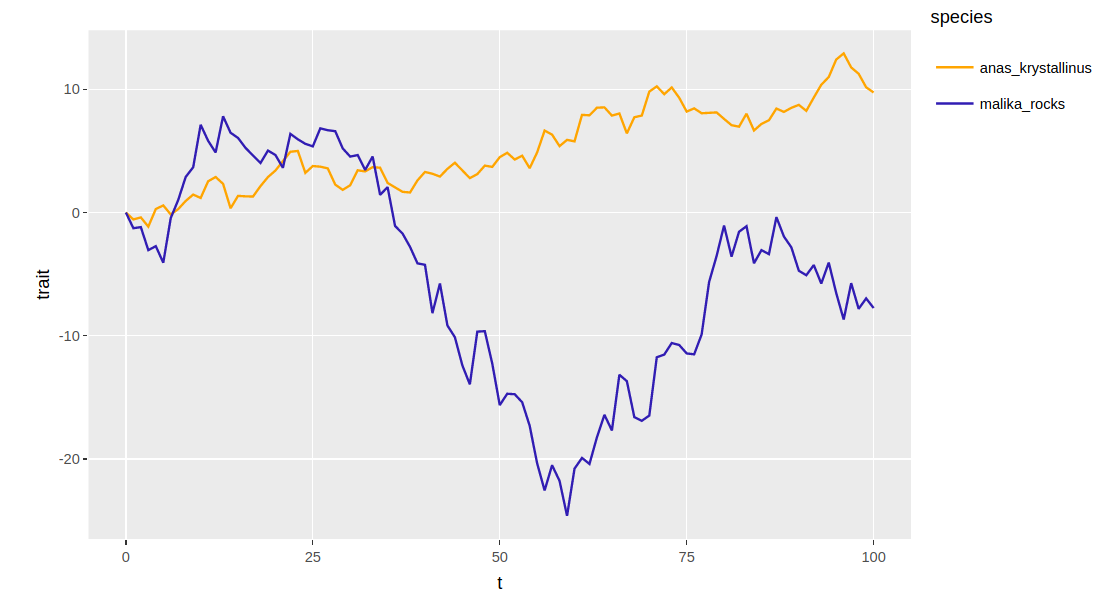
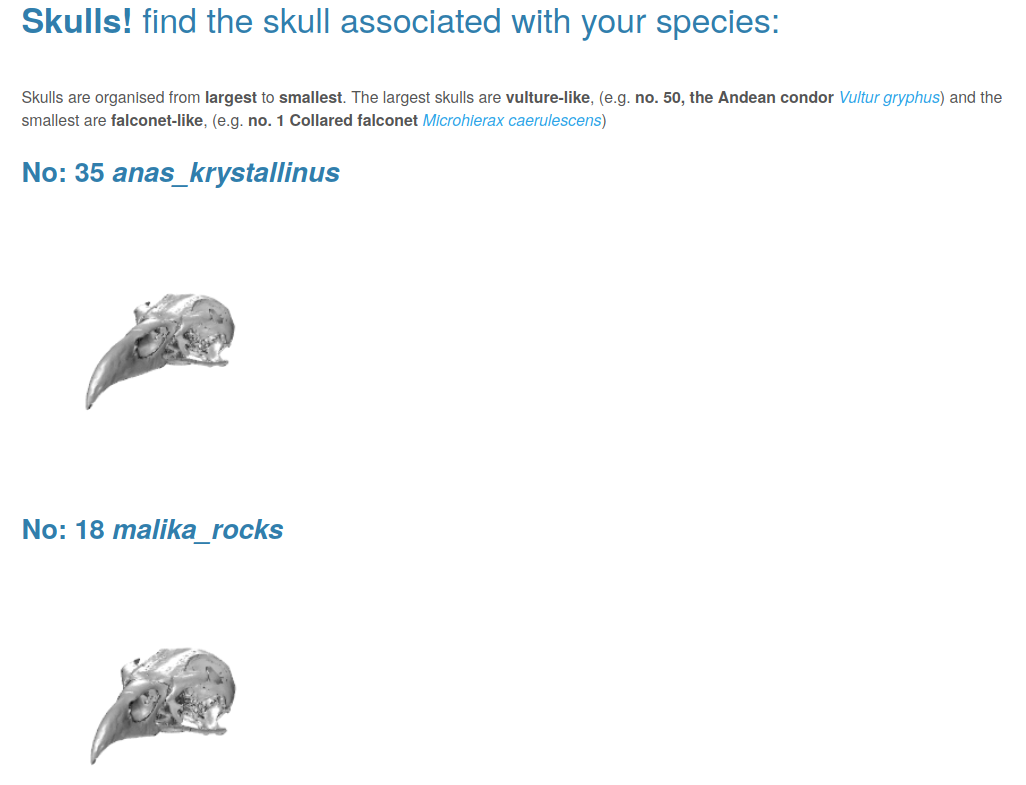
plot-trait-evolution.Rmd” file in the repository which sources all the contributed files.Knit” button on the toolbar to generate plots and figures based on the parameters that were contributed.What does Knit do?
Knitting a Rmarkdown file means rendering the Rmarkdown code. This integrates the R code and Markdown code into a defined format (for example: an html file).


You did it! You collaborated on GitHub!
Now let’s see what that looks like for this project with a live demonstration using your contributions!
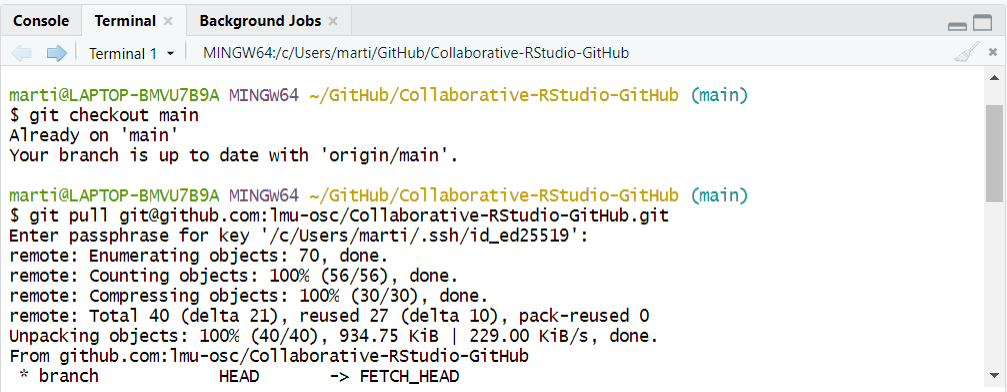
To pull upstream means to update your local or forked repository with the latest changes from the original (upstream) repository.
git checkout
This command sets the branch to the one you want to pull the modifications from. In this case, you want to pull the changes from the main branch of the remote main repository into your the main branch of your local repository.
How to properly format this command?
Replace the “ORIGINAL_OWNER” with the name of the GitHub account that owns the main repository. Replace “ORIGINAL_REPOSITORY” with the name of the main repository that has the original project files.
This is an example.
This is an example.
You just completed the entire workflow!
What actions did we learn in today’s lesson?
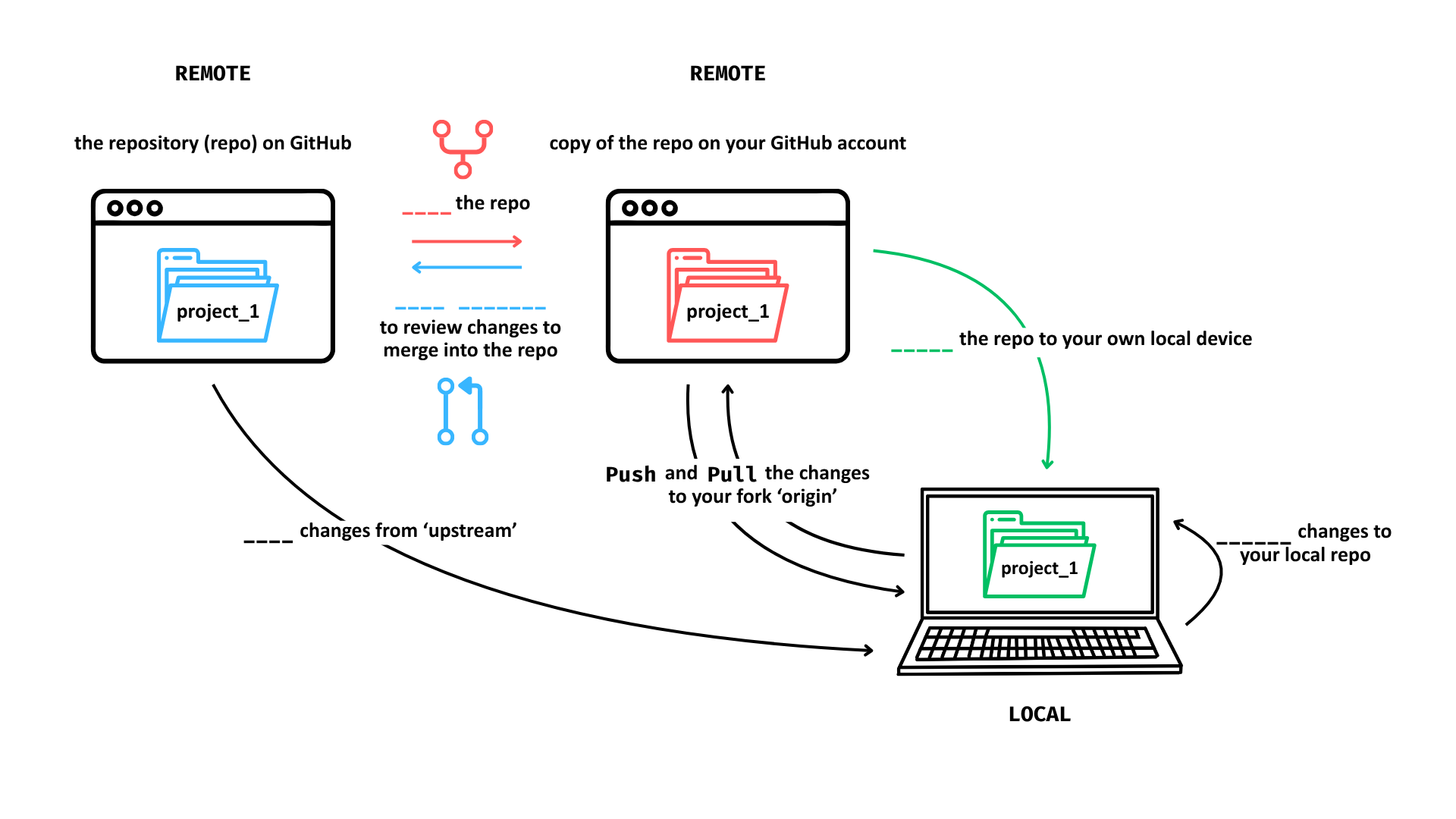
Remember this illustration?
Fill in the missing words with the actions we learned today!
© 2025 Elizabeth Waterfield
Check your answers!
Now that you have all gained some experience working collaboratively using GitHub, let us reflect with some questions:
1. How can collaborative coding with GitHub be useful?
2. What potential problems could still arise using this workflow?
Consider the following question:
If you had to explain to a new teammate why using GitHub for collaboration is valuable, what key ideas from today would you talk about?
What is a terminal?
It is a text-based tool where you can type commands to run programs such as Git. If you downloaded Git for Windows, you can right-click in a folder > Show more Options > Git Bash here to open Git Bash. On MacOS, you can use the built-in Terminal by going to Finder > Applications > Utilities > Terminal.
Here is an activity sheet to learn and practice Git commands in the terminal:
Which of the following concepts or skills do you feel MOST confident about in relation to Git and GitHub? (Select all that apply)
Forking a repository and working on my own copy.
Cloning a repository from GitHub to my local machine.
Making commits and writing meaningful commit messages.
Pushing local changes to a remote repository.
Pulling or fetching updates from a remote repository.
I am still not sure about any of these concepts.
On a scale of 1 to 5, how comfortable are you right now with using Git and GitHub for collaborative coding and version control? (1 = Not comfortable at all, 5 = Very comfortable)
1
2
3
4
5
When you worked collaboratively on this GitHub project, what aspect did you find most challenging?
Understanding Git commands (commit, push, pull)
Remembering all the steps
Navigating the GitHub interface
Other
What do we see in the results and how do they compare to the previous ratings?
Here are some topics that are related to this session
Creator: Waterfield, Elizabeth (
0009-0006-3725-6730)
Reviewer: von Grebmer zu Wolfsthurn, Sarah (
0000-0002-6413-3895)
Consultant: Ihle, Malika (
0000-0002-3242-5981)
This work was originally created by Anna Krystalli from RSE-Sheffield under a MIT licence (original repository). It was subsequently adapted by Malika Ihle during her time at Reproducible Research Oxford, with the contributions of Adam Kenny. This work by Elizabeth Waterfield, Sarah von Grebmer zu Wolfsthurn, and Malika Ihle is licensed under a Creative Commons Attribution 4.0 International SA License (CC-BY-SA 4.0). Code snippets are dedicated to the public domain and licensed under a Creative Commons Universal License (CC0 1.0).
Please cite these materials as: Waterfield, E., Ihle, M., & Von Grebmer Zu Wolfsthurn (2026). Introduction to collaborative coding with GitHub [Quarto slides]. LMU Open Science Center. https://lmu-osc.github.io/teaching-material-for-novices/open-research-principles/github

LMU Open Science Center